Inference Engine installation guide
Within the dashboard, this guide will walk you through the steps to set up an edge device running Chooch models for CPU, NVDIA GPU, and Jetson Orin. The guide will explain how to install the Chooch Inference Engine on your device. It will also outline how to use the AI Vision Studio to create a device, add camera streams, and add AI models to the device.
You must have a Chooch Enterprise Account to install the Inference Engine. If you do not have one, please contact support@chooch.com to request one.
Hardware requirements
GPU (8.1.0)
| Compatible Graphics Cards | T4, V100, L40, L40S, L4, A2, A10, A30, A100, H100, RTX Ampere (Ax000/RTX30x0/RTX40x0) |
|---|---|
| Compatible Operating Systems | Ubuntu ≥ 22.04 (20.04 upon request) |
| GCC | GCC 9.4.0 |
| CUDA Release | ≥ 12.2 |
| CuDNN Release | 8.4.1.50+ |
| TRT Release | 8.4.1.5 |
| Display Driver | ≥ 535.183.01 |
| Compatible Processors | 8th to 13th generation Intel® Core™ > i7 (suggested i9) 3rd generation Intel® Xeon® Scalable processors |
| Memory | 32GB RAM minimum |
| Disk | 256GB SSD Drive |
CPU (8.0.0)
| Compatible Processors | 8th to 13th generation Intel®Core™ > i7 (suggested i9) 3rd generation Intel® Xeon® Scalable processors |
|---|---|
| Compatible Operating Systems | Ubuntu* 18.04.3 LTS and above (64 bit) |
| Memory | Min 32GB RAM |
| Disk | 256GB SSD Drive |
Jetson Orin (8.0.0)
| Compatible Processors | Jetson AGX Orin 64GB Jetson AGX Orin 32 GB |
|---|---|
| Compatible Operating Systems | Jetpack 5.1.2 |
| Memory | Min 32GB RAM |
Installation guide
Many of the following command lines will require your system’s root or super user password. An Internet connection is needed to perform many of the following steps.
GPU (8.1.0) setup guide
Installation requirements for Ubuntu server for GPU
If Ubuntu has not been installed, please use the following link: https://releases.ubuntu.com/22.04/. If Ubuntu has been previously installed, please continue below.
Enter the following script to your terminal and follow the instructions.
This installation time may take approximately 60 minutes or more, based on your network upload speed.
Optional arguments
api_key
API Key provided by Chooch can be found at the bottom of your Chooch AI Vision Studio Homepage.
CPU (8.0.0) setup guide
Installation requirements for Ubuntu Server for CPU
Please follow the docker installation instructions:
https://docs.docker.com/engine/install/ubuntu/
Enter the following script to your terminal and follow the instructions:
This installation time may take approximately 60 minutes or more, based on your network upload speed.

Optional arguments
-d <install_dir>
install directory (defaults to $HOME if not specified)
api_key
API Key provided by Chooch can be found at the bottom of your dashboard’s Homepage.
Jetson Orin (8.0.0) setup guide
Chooch supports the NVIDIA JetPack SDK. JetPack installation is managed by NVIDIA SDK Manager. You will need to create a free NVIDIA account or use an existing one.
Please follow the NVIDIA SDK Manager installation instructions that explain how to install Jetpack OS 5.1.2, using a host device (host device requirements below).
| Required Host Operating System | Ubuntu ≥ 22.04 (20.04 upon request) |
|---|---|
| Compatible Jetpack Version | Jetpack 5.1.2 |
| Required Host Hardware | RAM 8GB Internet Connection |
All CUDA libraries will be included in Jetpack. If you are seeing errors about missing CUDA drivers, please reboot to confirm proper installation and setup.
Jetson Orin installation instructions
If you are accessing the Jetson Orin device locally, login into http://localhost:3000 and follow the instructions below. If accessing Jetson Orin remotely, login from the Jetson’s public IP address at port 3000 to access the Chooch Inference Engine.
On Host Device: Connect the hardware directly to the host device with SDK Manager installed. This will vary from device to device, but normally a USB cord is provided)
Launch NVIDIA SDK Manager, make the following selections:
- Select the connected device
- Select JetPack 5.1.2
- Follow the on-screen prompts until the device begins to install the required configurations.
- Once the JetPack 5.1.2 is installed, navigate to the Jetson-Orin Edge Hardware:
- Open CLI Terminal.
- Run the following command.
# Replace API_KEY with your API Key generated from app.chooch.ai dashboard.

bash -c "$(curl https://get.chooch.ai/inference-engine-v8-jetson)" -k API_KEY
Inference Engine setup instructions
- Log in to your Chooch AI Vision Studio account.
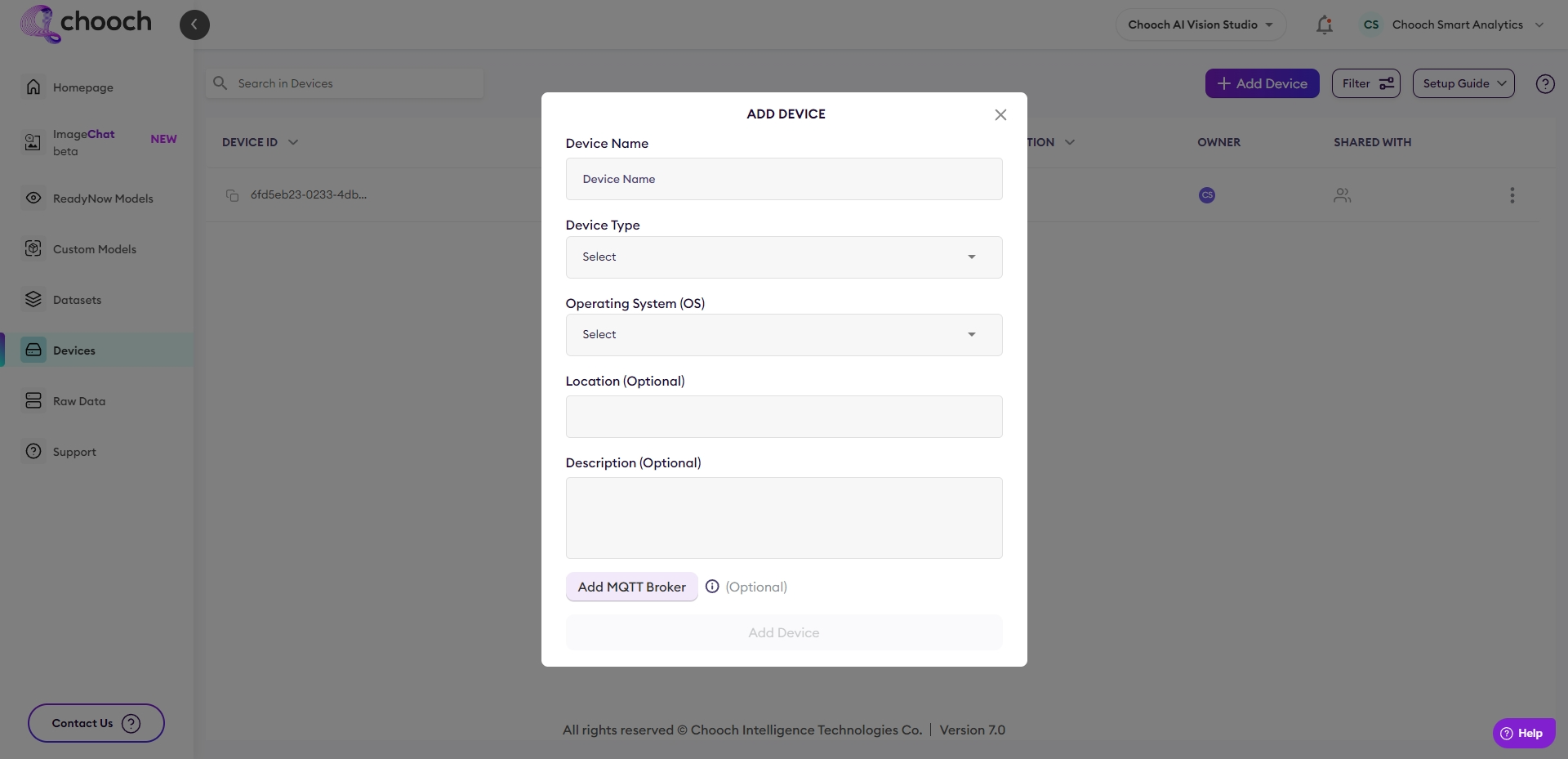
- Create a device
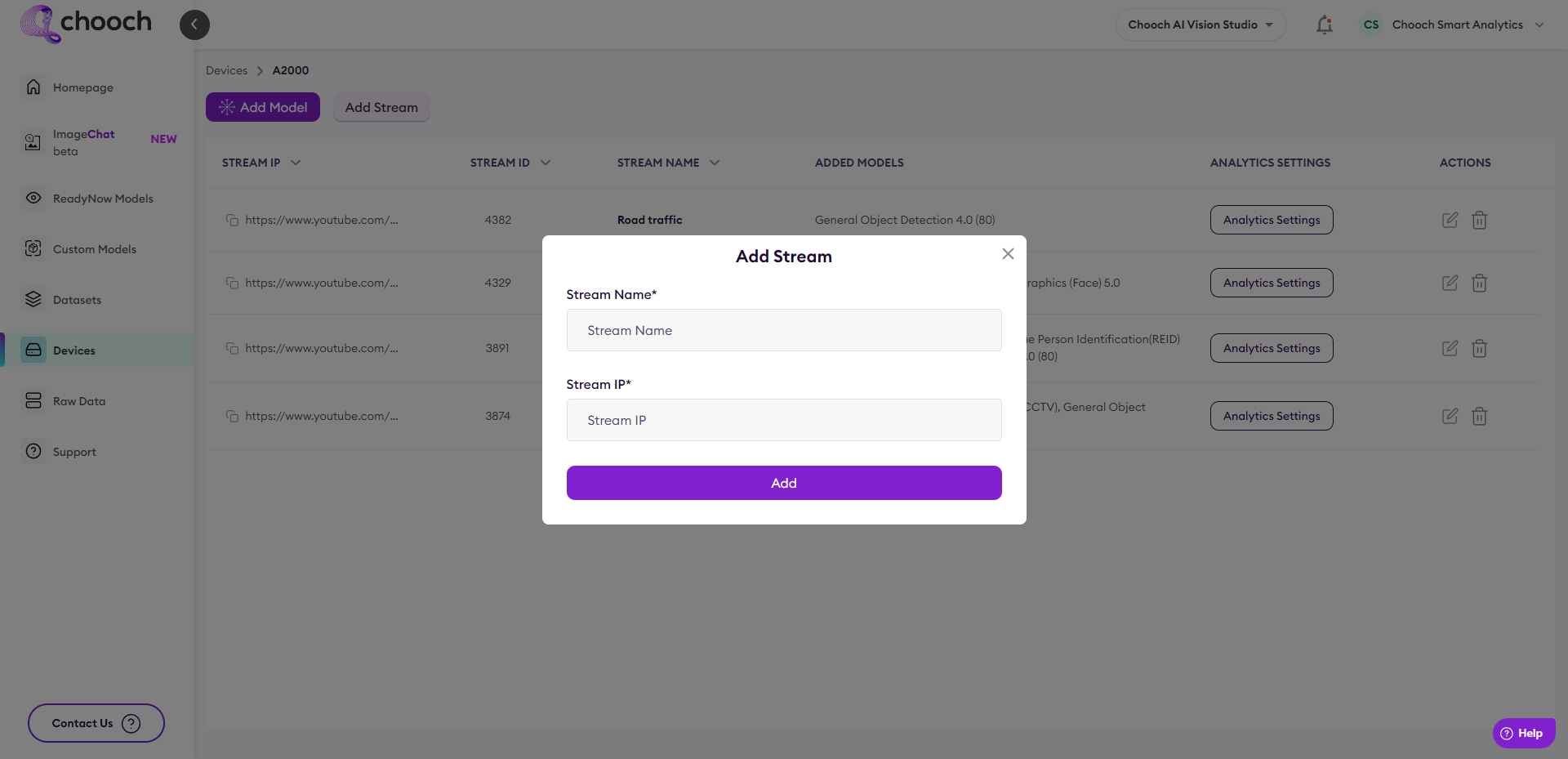
- Add a stream to your device
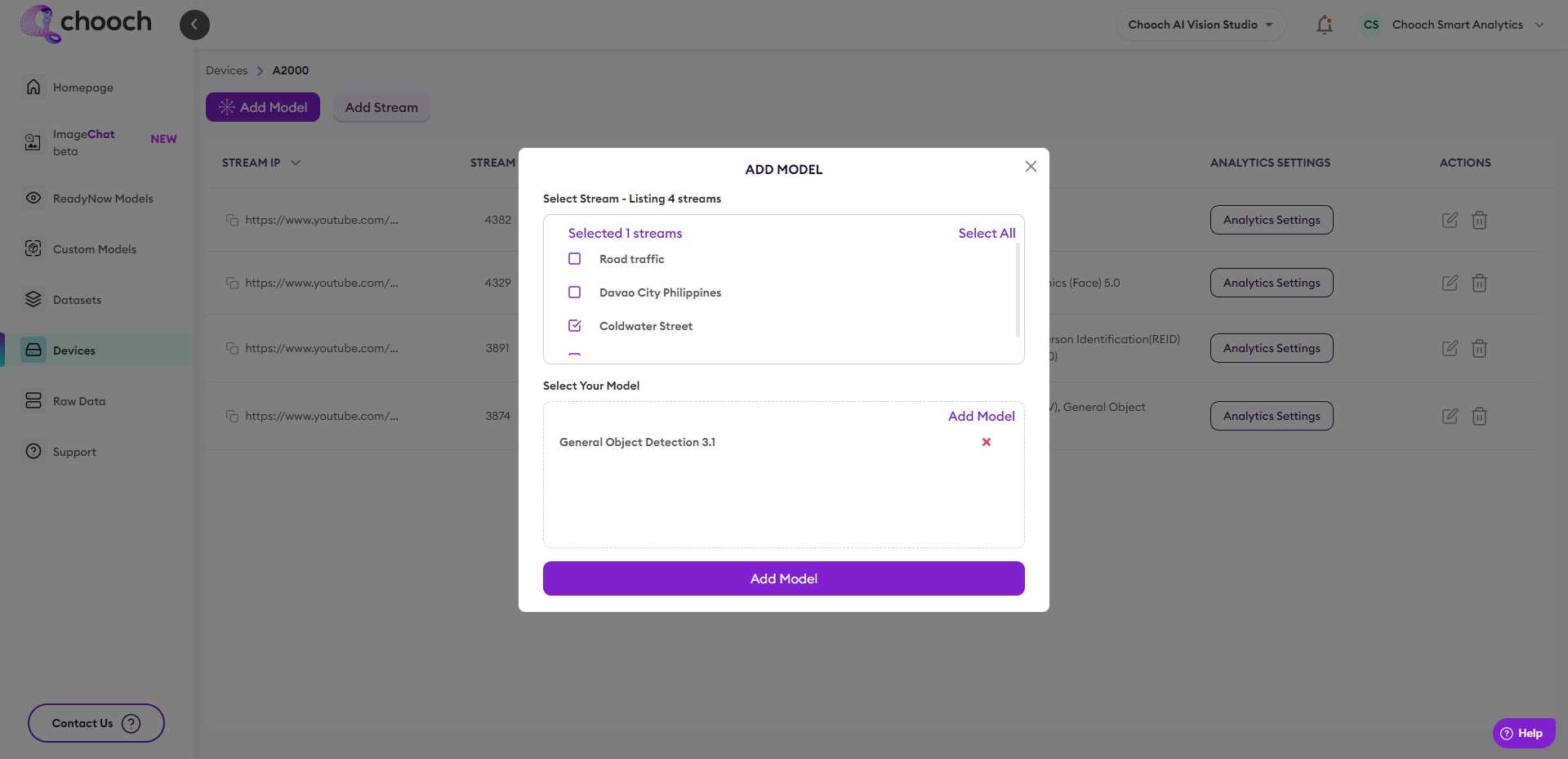
- Add Models to your stream
- You can access your Chooch Inference Engine interface on your device from http://localhost:3000/.
- Copy and paste the Device ID of the device you want to connect. The Device list can be found under the Devices tab of your dashboard.
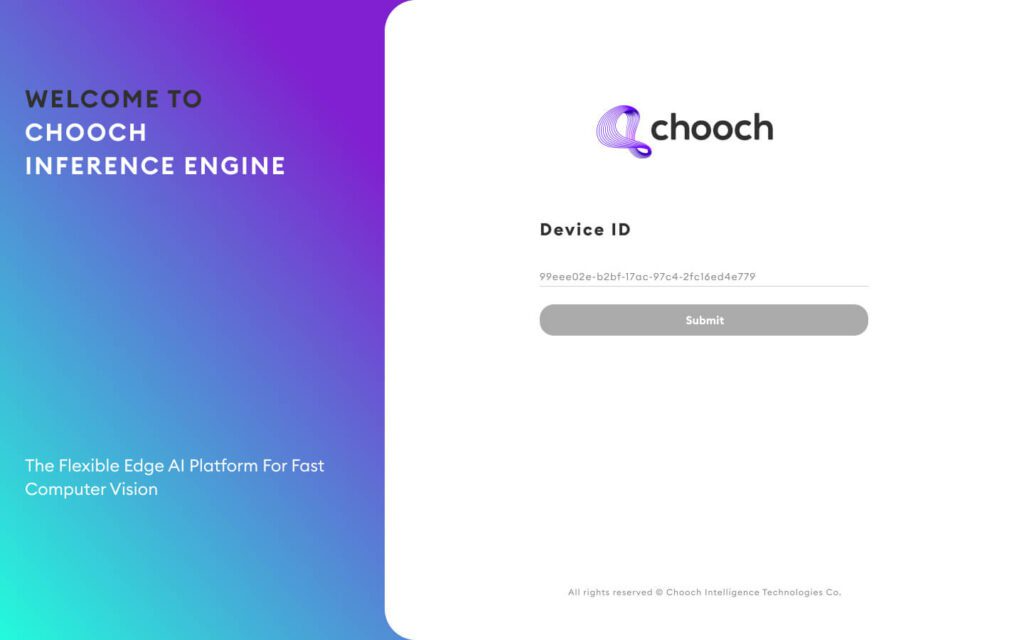
- Set a password to access the dashboard.
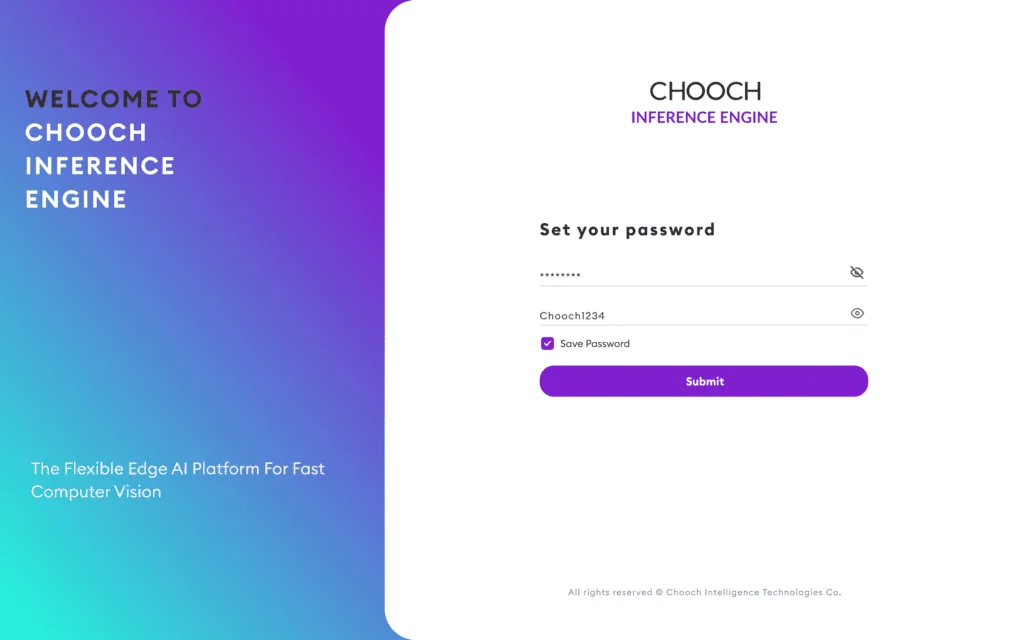
- You can access your Chooch Inference Engine interface on the device after installation, from http://localhost:3000/.
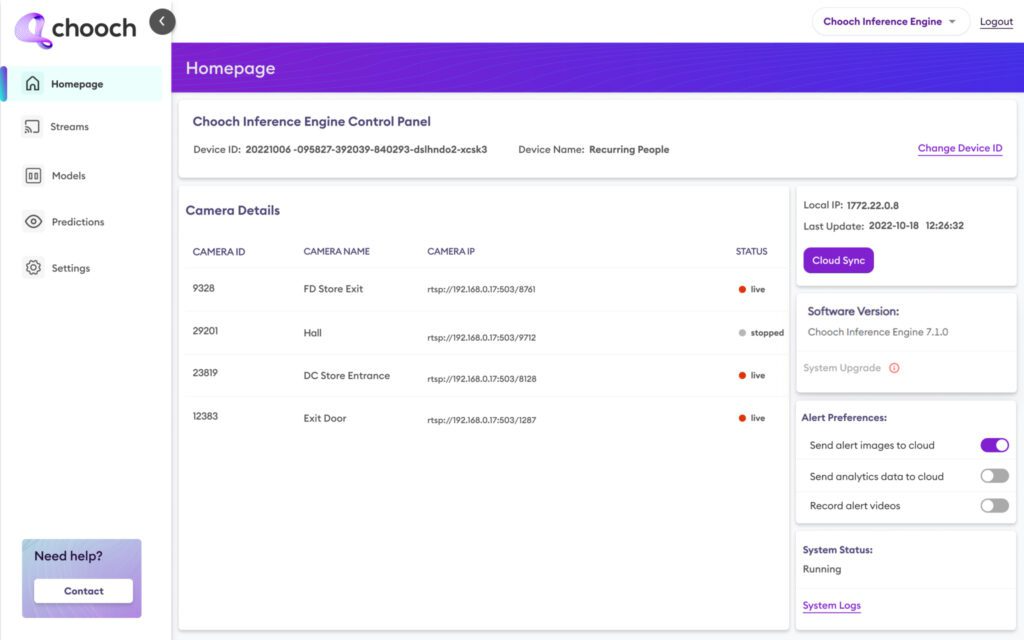
- Once you have finalized changes to your stream from https://app.chooch.ai dashboard, click onCloud Syncfrom the Inference Engine dashboard to sync the changes.
- Note: If Cloud Sync doesn’t appear to finish, try refreshing the page.
- Verify camera feed is showing and sending prediction data by clicking on Streams tab.
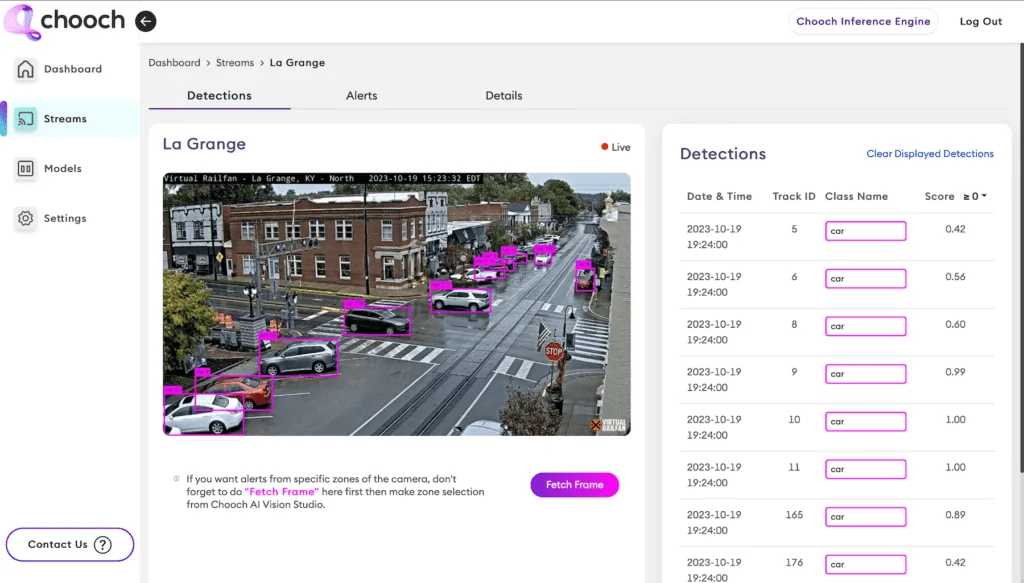
- Now you can start using the system!
Some useful commands start, stop and restart the service on device.
Start the Chooch Inference Engine
docker-compose start
Stop the Chooch Inference Engine
Restart the Chooch Inference Engine
docker-compose restart
Related Articles
Chooch Inference Engine Setup Guide
Edge Device Setup Guide v5/v6 Chooch Inference Engine Setup Guide Within the dashboard, this guide will walk you through the steps to set up an edge device running Chooch AI models for NVDIA GPU’s and Intel Processors. The guide will explain how to ...Deploying Chooch Inference Engine on Edge Devices
Deploying Chooch Inference Engine on Edge Devices Edge deployment checklist The following steps will need to be completed in order to deploy Chooch at the Edge. See below for more details on each task. If you have any questions or need technical ...ImageChat–Self-hosted Installation Guide
ImageChat–Self-hosted Installation Guide Download ImageChat to your local environment and take control of your AI capabilities. Using ImageChat advanced features, you can build and deploy Generative Multimodal AI Vision applications on your own ...Create a Dataset
Overview Datasets are sets of images and videos used to create models within the platform, users can upload multiple images to annotate or upload already generated datasets. System Features 2D Synthetic data 3D Synthetic data Smart Annotation ...Image Models
Overview Image models can detect images of a desert to a forest or sunny weather to cloudy weather, Image models offer users the ability to analyze elements within an image to discern the overall context, thus providing a powerful insight for users. ...